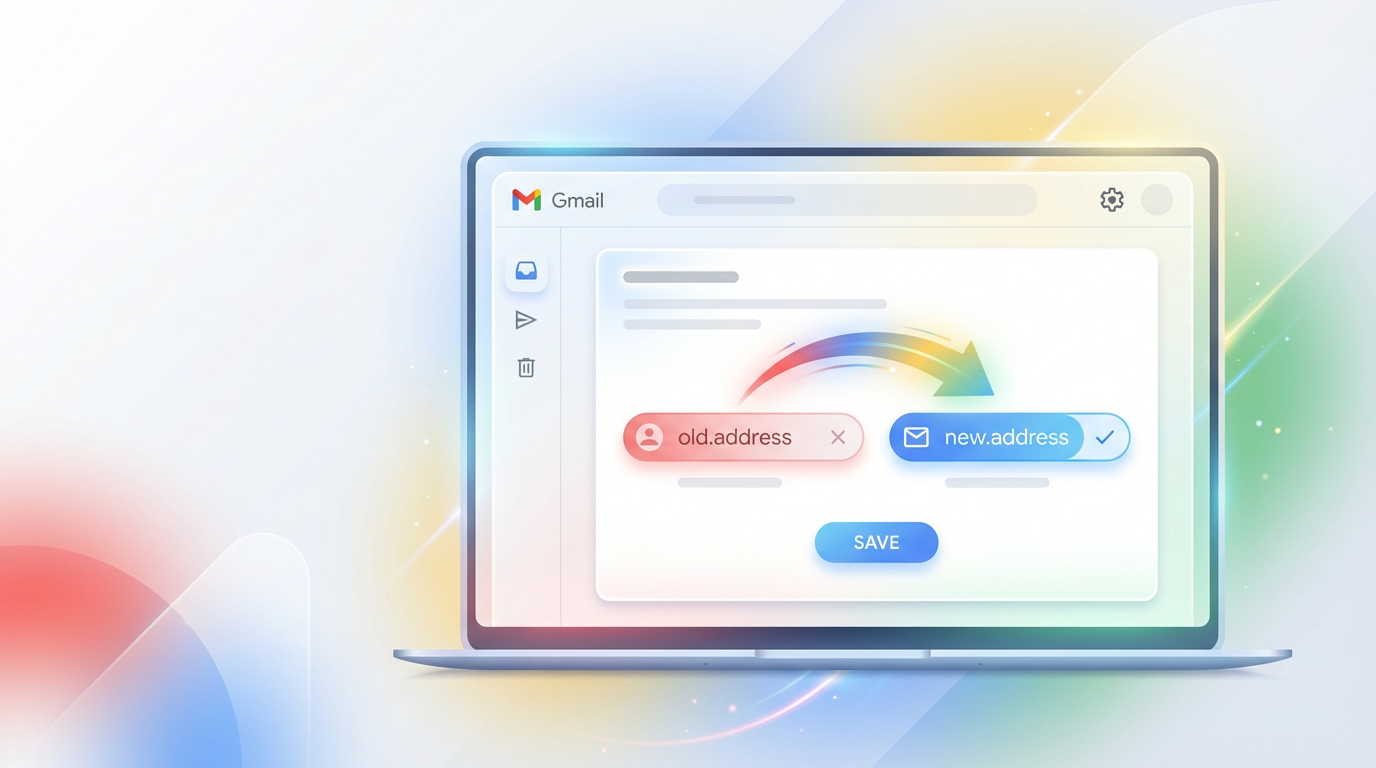
SAN FRANCISCO — For nearly two decades, your Gmail address has been more than just a digital mailbox. It became an immutable digital fingerprint. Since the service launched back in 2004, the rule was absolute and unforgiving.
Once you picked a username, you were stuck with it for life. This rigidity left millions of users trapped with unprofessional handles created in their youth. We all know someone still using "SkaterBoy2005" or "CuteKittenXOXO" for serious job applications.
That era of digital permanence has finally ended. In a move that has surprised industry analysts and delighted users, Google has begun a global rollout of a massive feature update. You can now swap your @gmail.com handle for a fresh one without deleting your account.
This is not a simple "send mail as" workaround or a forwarding trick. This is a fundamental restructuring of how Google accounts identify users. You keep your years of emails, your carefully curated Drive folders, and your Google Photos memories intact.
This comprehensive guide serves as your manual for navigating this transition. We cover not just the "how to," but the critical "should you" aspects. We dive into security implications and expert tips for ensuring your banking accounts don't get locked out.
The Technical Breakthrough: Why Now?
To understand the significance of this update, one must appreciate the engineering challenge behind it. For years, Google used your email address as your primary key. It was the unique string of code that tied your data together.
Changing that string was akin to pulling the bottom card out of a house of cards. It threatened to break links to shared documents, confuse Android device syncing, and disrupt third party logins. The risk was simply too high for too long.
The new system decouples your visible email address from your internal Google Account ID (GAIA ID). Think of it like changing the house number on your front door while the house itself remains on the same foundation.
Your data sits in the same "house," but visitors (emails) now look for a new number. The genius of this implementation is the Automatic Alias System. When you switch to newname@gmail.com, your old address is instantly converted into a permanent alias.
It doesn't get released back into the pool for strangers to claim. Instead, it remains attached to your inbox forever. It acts as a permanent safety net that catches any mail sent to your previous identity.
Capabilities and User Benefits
Before proceeding, it is vital to know what you can actually do with this tool. Google has built this to be a comprehensive identity shift, not a temporary patch. Below is a breakdown of the primary benefits.
| User Capability | Benefit Description |
|---|---|
| Rename Local Part | Change the 'username' before @gmail.com to anything professional and available. |
| Full History Sync | Every single email thread from your old address remains in your inbox. |
| Dual Login Support | You can log into Google Account using either the old or new handle. |
| Instant Forwarding | Old mail is automatically 'pushed' to the new primary inbox via the alias system. |
This structural change ensures that even if you forget to update your bank or insurance provider, their automated emails will still reach you safely.
Pre-Flight Checklist: Before You Click Change
Changing your digital identity is a major event. Before you rush to settings, run through this "pre flight" checklist. This ensures you don't accidentally lock yourself out of critical services.
1. Audit Your Critical Accounts
Make a list of "Tier 1" services that use your Gmail for Two Factor Authentication (2FA). This typically includes online banking and government portals. While forwarding works, some security systems flag new emails as suspicious.
2. Back Up Your Data (Just in Case)
While Google's process is designed to be safe, technology can be unpredictable. Use Google Takeout to download a backup of your Contacts and essential Drive files. It costs nothing but time and provides immense peace of mind.

3. Check Your Device Sync Status
Ensure your Android or iOS devices are fully synced. After the change, you may be prompted to re authenticate on your phone. Knowing your data is backed up to the cloud ensures you won't lose unsynced photos or notes.
Step-by-Step Execution Guide
Once you are ready, follow this precise workflow to execute the change. Note that you should perform this on a desktop computer if possible for the best visibility of options.
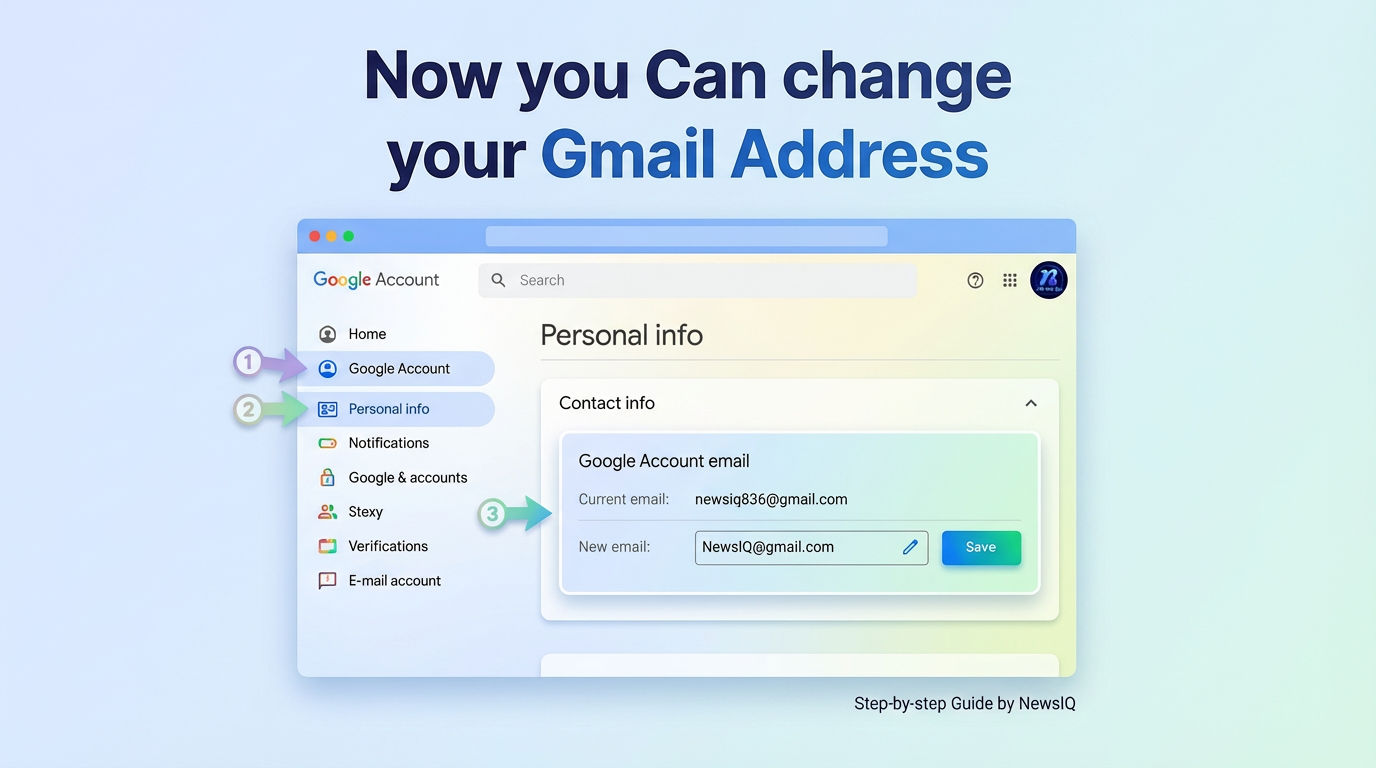
Step 1: Access the Command Center
Navigate to your account dashboard. On the left sidebar, click on Personal Info. This section houses your basic profile data and identification settings.
Step 2: Locate the Email Setting
Scroll down to the "Contact Info" block and click on Email. You will see your Google Account email listed. If your account has received the update, you will see an edit icon or a button labeled "Change email address".
Step 3: Verification and Selection
Click the edit button. Google will require immediate re authentication via password and 2FA. You will then be presented with a field to input your new desired address. Google will instantly check availability.
Step 4: The Critical Confirmation
Read the warning screen carefully. It will explicitly state that your old email will become an alias. It will also warn you of the 12 month cooldown period. This is your point of no return.
Step 5: Post Change Verification
After confirmation, check your inbox. You will receive an automated email confirming the action. Test the system immediately by sending an email from a different account to your old address to verify it lands in your inbox.
Pro Tips for Power Users
Now that you have switched, use these pro tips to manage your transition like an IT professional. These small steps make a huge difference in your daily workflow.
Update Your "Send Mail As" Settings
Sometimes, even after a change, Gmail's mobile app might default to the old alias for a few hours. Go to Gmail Settings > Accounts and Import > "Send mail as" and ensure your new address is set as the default.
The "Soft Launch" Strategy
Don't blast your new email to everyone instantly. Start by updating your email signature. Add a line that says: "Please note my new email address. My old address still works, but please update your records." Keep this for at least 3 months.
Leverage Filters for the Old Address
Create a Gmail filter for "To: [Old Email Address]". You can apply a specific label to these incoming messages. This allows you to visually see which services are still using your outdated handle.
Security Implications & The 12-Month Rule
Google has implemented strict guardrails to prevent this feature from being used for account hijacking or spam operations. These rules are non negotiable.
The 12 Month Cooldown
You are locked into your new address for one full year. This prevents indecisive users from rapid cycling names, which consumes server resources. It also acts as a security buffer for identity verification.
The 3 Strike Limit
You can only perform this change three times during the entire lifespan of your Google account. This is crucial. Do not waste a change on a whim. Treat each change as a scarce resource.
Address Recycling
Crucially, your old email address is never released to the public. Even if you delete your account later, that specific username remains retired. This prevents identity theft where a stranger could register your old name.
Detailed Breakdown: What You Can vs. Cannot Change
Understanding the nuance of this change is vital. Use this matrix to verify your expectations before committing to the switch.
| Feature / Aspect | Status After Change | Changeable? |
|---|---|---|
| Username (Before @) | Swapped to new handle | YES |
| Display Name | Fully customizable | YES |
| Domain (@gmail.com) | Fixed to Google servers | NO |
| Account Creation Date | Remains original | NO |
| Google Play Purchases | Stay tied to account ID | NO |
| Drive File Permissions | Owner ID stays the same | NO |
Troubleshooting Common Issues
Even with a smooth rollout, edge cases occur. Here is how to handle the most common glitches users are reporting.
"I don't see the pencil icon."
If the edit option is missing, verify you are not in a "Family Link" supervised group. Child accounts often have strict limitations. If you are an adult, it is likely a regional rollout delay.
"My emails aren't syncing on iPhone."
Apple's Mail app often struggles with credential changes. The fastest fix is to remove the account entirely from iOS Settings and re add it using the "Google" login option.
"Calendar invites are broken."
If you sent invites from your old address, updates might appear to come from the new one. For critical meetings, it is often better to cancel the old event and issue a fresh invite from the new identity.
Summary
Here is the executive summary on the 2025 Gmail update:
- The News: You can now change your @gmail.com username without creating a new account.
- The Benefit: All emails, Drive files, Photos, and YouTube history are preserved perfectly.
- The Old Email: Becomes an "alias," so you still receive mail sent to it.
- The Catch: You can only change it 3 times total, and you must wait 12 months between changes.
- Action Item: Check Manage Google Account > Personal Info to see if you have the update.
FAQs
Will I lose access to third party accounts (Netflix, Spotify)?
No, but you should update them eventually. Since your old email still works as an alias, password reset emails sent to the old address will still arrive in your inbox. However, for security and clarity, it is best to update your login email on those external sites to match your new primary identity.
Can I reuse my old address on a completely new account?
No. Your old address stays tied to your current account as an alias. You cannot "free it up" to be used by someone else or on a second account. This prevents impersonation.
What happens to my Google Chat and Hangouts history?
Your chat history is preserved. However, people you have chatted with previously may see a notification that your security code or identity has changed, similar to how WhatsApp handles phone number changes.
Does this affect my Android Play Store purchases?
No. Your purchases are tied to the account ID, not the email text. You will not lose access to any paid apps, movies, or subscriptions. You just need to sign in with the new email if prompted.
Can I change my email to a non Gmail address?
No. This feature specifically allows swapping one @gmail.com handle for another @gmail.com handle. You cannot use Yahoo, Outlook, or a custom domain via this specific flow.
What if I want to revert back to my old email?
You generally cannot revert back immediately. Once you change your address, the 12 month cooldown applies. You would have to wait a full year to switch back, provided you haven't used up your 3 strike limit.
Does this affect Google Photos face grouping?
No. Google Photos uses internal IDs to tag faces and organize albums. Changing your email address is a cosmetic change for the login; the underlying AI database remains untouched and your albums stay organized.
Will people see my new email when I reply to old threads?
Yes. Unless you manually configure "Reply as" settings, your replies will typically come from your new primary address. This effectively notifies people of your change without you having to announce it.
Can I use this feature on a Workspace (Business) account?
Usually, no. This specific feature is rolling out to personal @gmail.com accounts. Workspace admins already have the power to rename users, but that is a different administrative process controlled by your IT department.
What happens to my YouTube Channel URL?
If you have a custom URL (youtube.com/c/yourname), it remains unchanged. Your login email changes, but your public facing channel branding does not automatically shift unless you manually update your channel details.

 Skasif