ChatGPT Add-On Brings AI Directly Into Excel and Google Sheets
 Skasif
06/05/2026
Skasif
06/05/2026 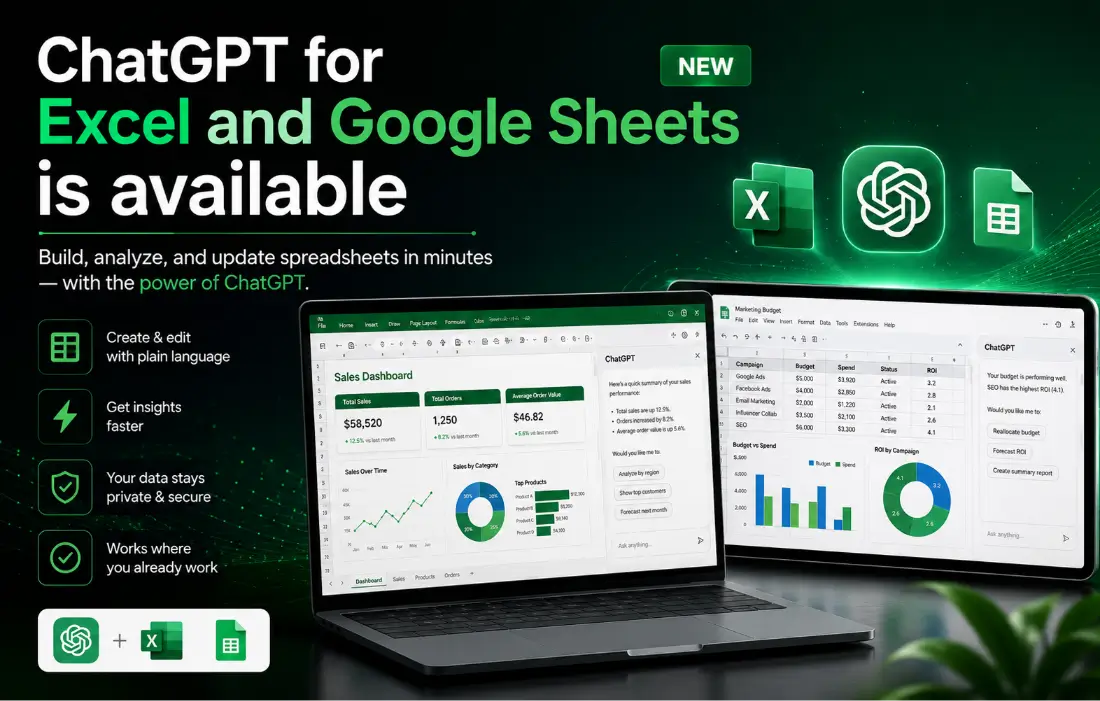
OpenAI has launched ChatGPT for Excel and Google Sheets, allowing users to create spreadsheets, fix formulas, analyze data, and automate tasks directly inside their workbook.
OpenAI Brings ChatGPT Inside Your Spreadsheets
OpenAI has released official ChatGPT add-ons for Microsoft Excel and Google Sheets. The integrations put AI assistance directly into the tools millions of people already use for work, budgeting, financial modeling, and data analysis. No more copying data back and forth between browser tabs and spreadsheets. Everything happens inside a sidebar in your familiar workbook environment.
The add-on works across ChatGPT plans including Free, Plus, Pro, Business, Enterprise, Edu, and Teachers. It supports both desktop and web versions of Excel and Sheets, making it widely accessible.
What the ChatGPT Spreadsheet Add-On Actually Does
You describe what you need in plain language. ChatGPT can start from a blank sheet or work with existing data. It builds formatted spreadsheets complete with formulas, then explains its reasoning and links directly to the cells it changes.
Key features highlighted in OpenAI’s announcement materials include:
- Building spreadsheets from scratch: Ask for a survey results analysis, discounted cash flow model, business plan, or monthly budget. It generates the structure, formulas, and formatting.
- Analyzing existing data: Get summaries across multiple tabs, spot patterns, identify errors, and turn raw numbers into actionable insights.
- Formula help: Ask “Why am I getting an error in cell B145?” and receive clear explanations plus fixes while preserving your original formatting.
- Real-time updates: Pull in fresh information and refresh models without manual copying.
- Transparency and control: The tool explains each step, references specific cells, asks permission before major edits, and lets you revert changes.
This addresses a common pain point. Many users inherit complex spreadsheets they don’t fully understand or spend hours debugging formulas. The add-on makes those files more approachable.

How to Install ChatGPT for Excel
- Open Excel (desktop or web version).
- Go to Home → Add-ins.
- Search for “ChatGPT” and install the official add-on.
- It appears in the ribbon. Open the sidebar and sign in with your OpenAI account.
Enterprise and Business admins can control access through their workspace settings.
How to Install ChatGPT for Google Sheets
- Open your Google Sheet.
- Go to Extensions → Add-ons → Get add-ons.
- Search for “ChatGPT” and install.
- Open it from the Extensions menu and sign in.
The process takes under a minute in both cases.
Real-World Uses That Matter Now
Finance teams can ask it to update balance sheets with latest earnings data, add variance analysis, or create executive dashboards. Business owners can get spending pattern breakdowns and practical budgeting suggestions. Analysts can clean messy datasets, remove duplicates, and standardize labels quickly.
Project managers can generate trackers on the fly. Students and educators benefit from step-by-step formula explanations that actually teach rather than just output answers.
Early examples in OpenAI’s materials show the tool handling multi-tab financial models, pulling external context, and producing clean summaries tasks that traditionally eat up significant time.

Old Workflow vs New Reality
Before: Export data to ChatGPT in a browser, lose context, paste results back in, manually check formulas, and hope nothing broke.
Now: Stay inside Excel or Sheets. Use natural language. Get explanations tied to your exact cells. Maintain native formulas for easy auditing. Keep version control intact.
The biggest practical improvement is trust. Because the add-on shows its work and asks permission, users can verify changes instead of accepting black-box results.
Privacy and Enterprise Considerations
For Business, Enterprise, Edu, and Teachers users, data shared with ChatGPT is not used to train models by default. Enterprise admins have additional controls over access and data handling. OpenAI notes these protections explicitly in its documentation.
The add-on is available globally, though some advanced connected apps may have regional limitations.
Limitations to Keep in Mind
Like any AI tool, it works best with clear prompts. Very large files may hit context limits. Complex VBA macros or advanced Power Query setups are not its strongest suit yet. OpenAI advises users to review outputs carefully, especially for financial or high-stakes decisions.
It cannot replace human judgment but can dramatically reduce time spent on repetitive or tedious spreadsheet tasks.
ChatGPT is now inside Excel and Google Sheets
— Swiss Plus (@swisplus) May 6, 2026
Users can create spreadsheets, fix formulas, analyze tabs, and automate tasks using AI directly inside their workbook.
OpenAI’s spreadsheet upgrade is now rolling out.
Learn more: https://t.co/ycaSoRTvSu pic.twitter.com/TBpfFXROrN
Why This Release Matters in 2026
Spreadsheets remain the backbone of business decision-making—from quarterly reporting to strategic planning. By embedding ChatGPT directly where the work happens, OpenAI removes friction that has frustrated users for years.
Professionals spend less time fighting tools and more time thinking about what the numbers actually mean. Non-technical users gain access to sophisticated analysis that once required specialists. Teams move faster without losing control or auditability.
This integration fits a broader pattern of AI becoming embedded in everyday workplace software rather than living in separate chat windows.
Getting Started and Best Practices
- Start simple. Try basic requests like “Create a monthly budget template with needs and wants categories.”
- Be specific with prompts for better results: “Update only the Inputs tab with latest figures and summarize changes.”
- Duplicate important files before major edits.
- Use the explanation feature to learn why it made certain formula choices.
- For repeated tasks, explore saving custom “skills” or workflows as they become available.
The add-ons are free to install. Usage follows your existing ChatGPT plan limits.
Head to the official ChatGPT spreadsheets page or search directly in Excel or Google Sheets to get started.
This update makes advanced spreadsheet work more accessible while giving power users a genuine productivity boost. For anyone who opens Excel or Sheets daily, the practical impact could be significant.